
If you’re starting a website, you’ve probably heard about cPanel and WordPress — but what’s the difference?
In this simple guide, you’ll learn what cPanel is, how it works with WordPress, and how to install WordPress using cPanel in a few minutes.
Sections
What Is cPanel and Why It Matters for WordPress
cPanel is a web hosting control panel that lets you manage everything about your website — from files and databases to email and backups — in one place.
How cPanel Simplifies WordPress Management
With cPanel, you can:
- Install WordPress with a few clicks
- Manage multiple sites
- Set up automatic backups and security
- Access your database or email accounts easily
It’s like the dashboard of your hosting account — and it makes WordPress management simple, even for beginners.
cPanel vs. WordPress Managed Hosting
While WordPress hosting focuses on simplicity (the host does everything for you), cPanel hosting gives you more control and flexibility.
It’s perfect for freelancers, developers, and small business owners who want full access to their files and performance settings.
How to Install WordPress Using cPanel (Step-by-Step)
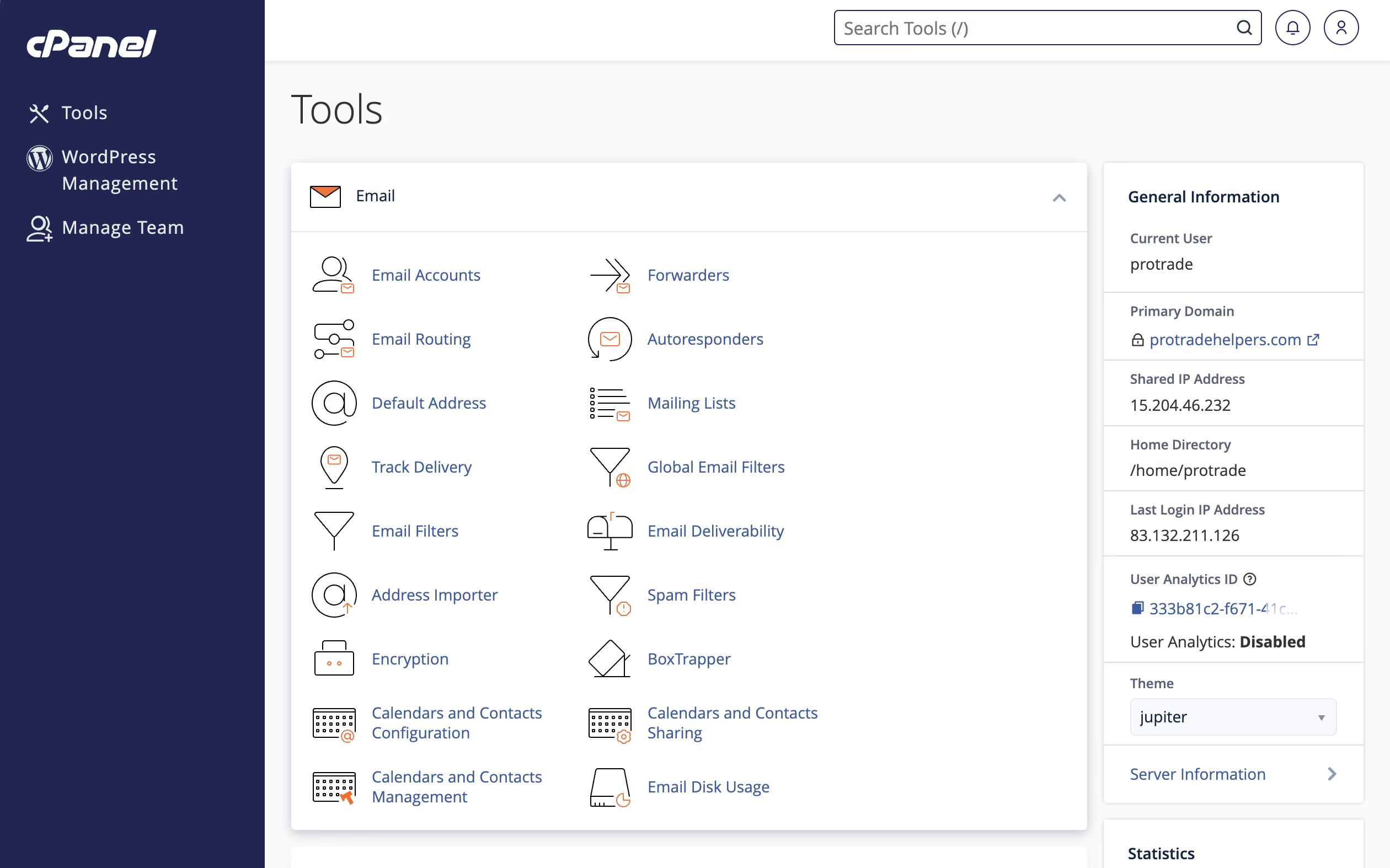
Step 1 – Log in to Your cPanel
Type yourdomain.com/cpanel in your browser and log in with your credentials.
Step 2 – Find the WordPress Installer
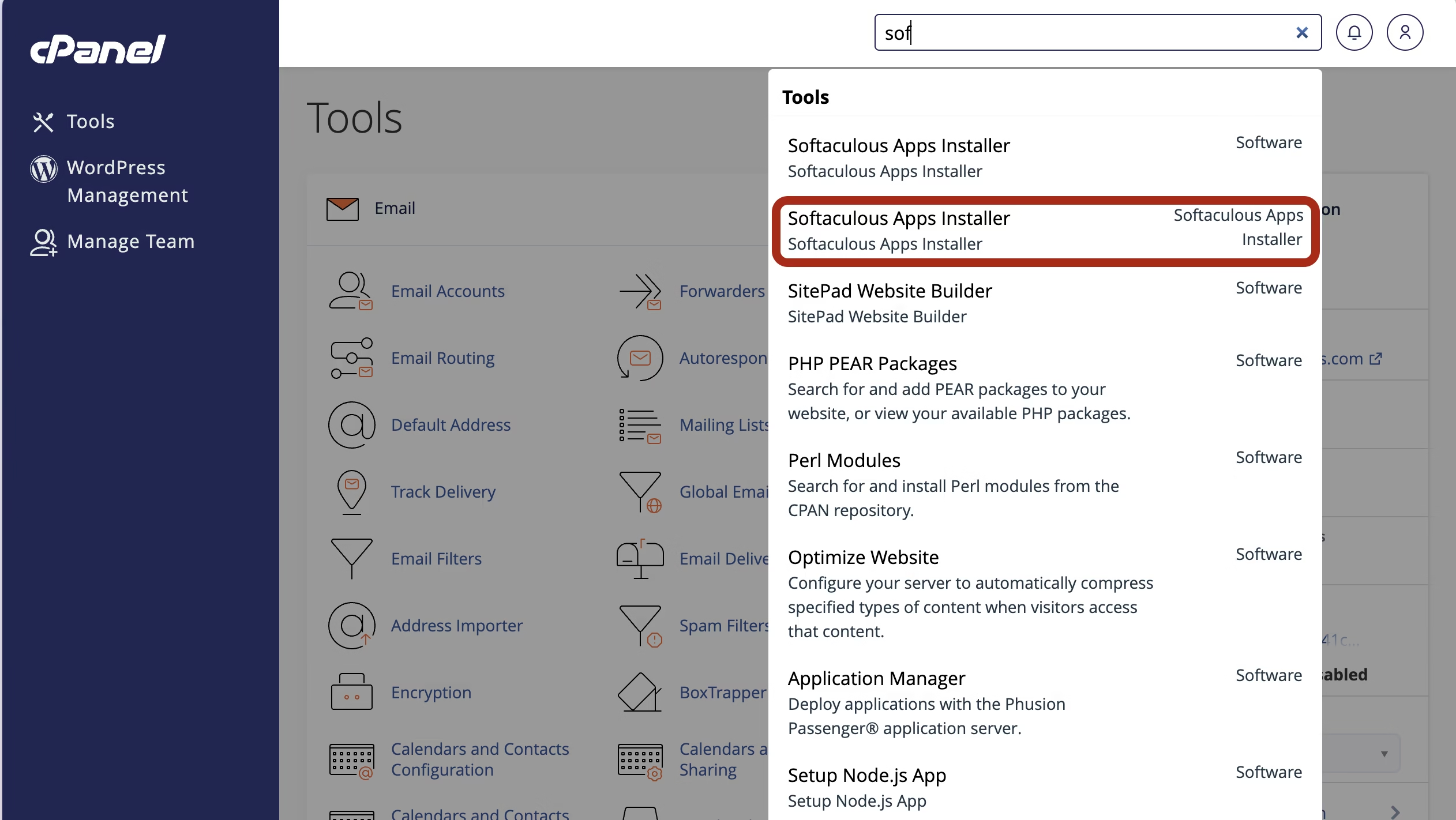
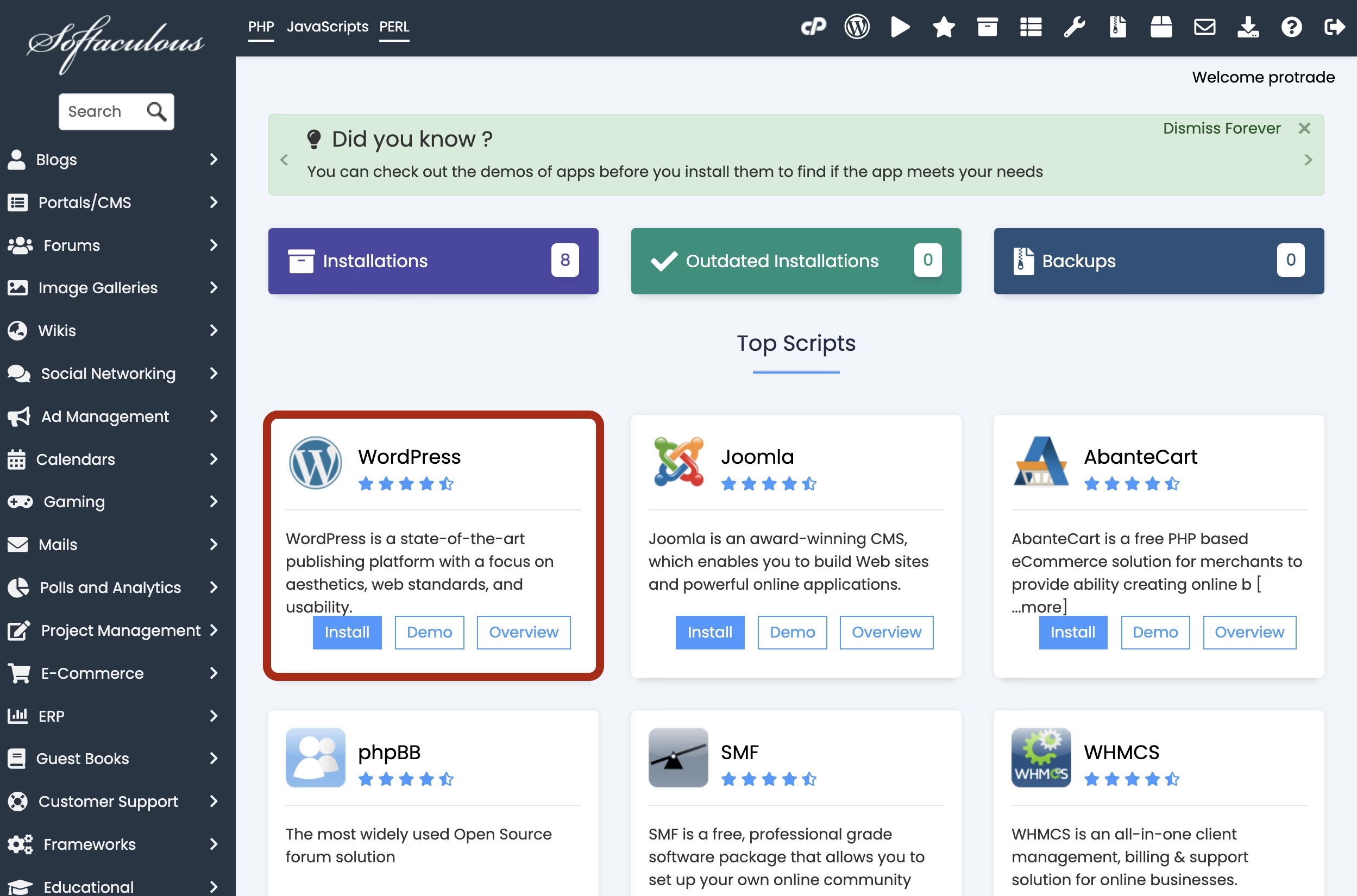
Look for Softaculous in search, WordPress Manager, or WP Toolkit inside your dashboard.
Click “Install WordPress”.
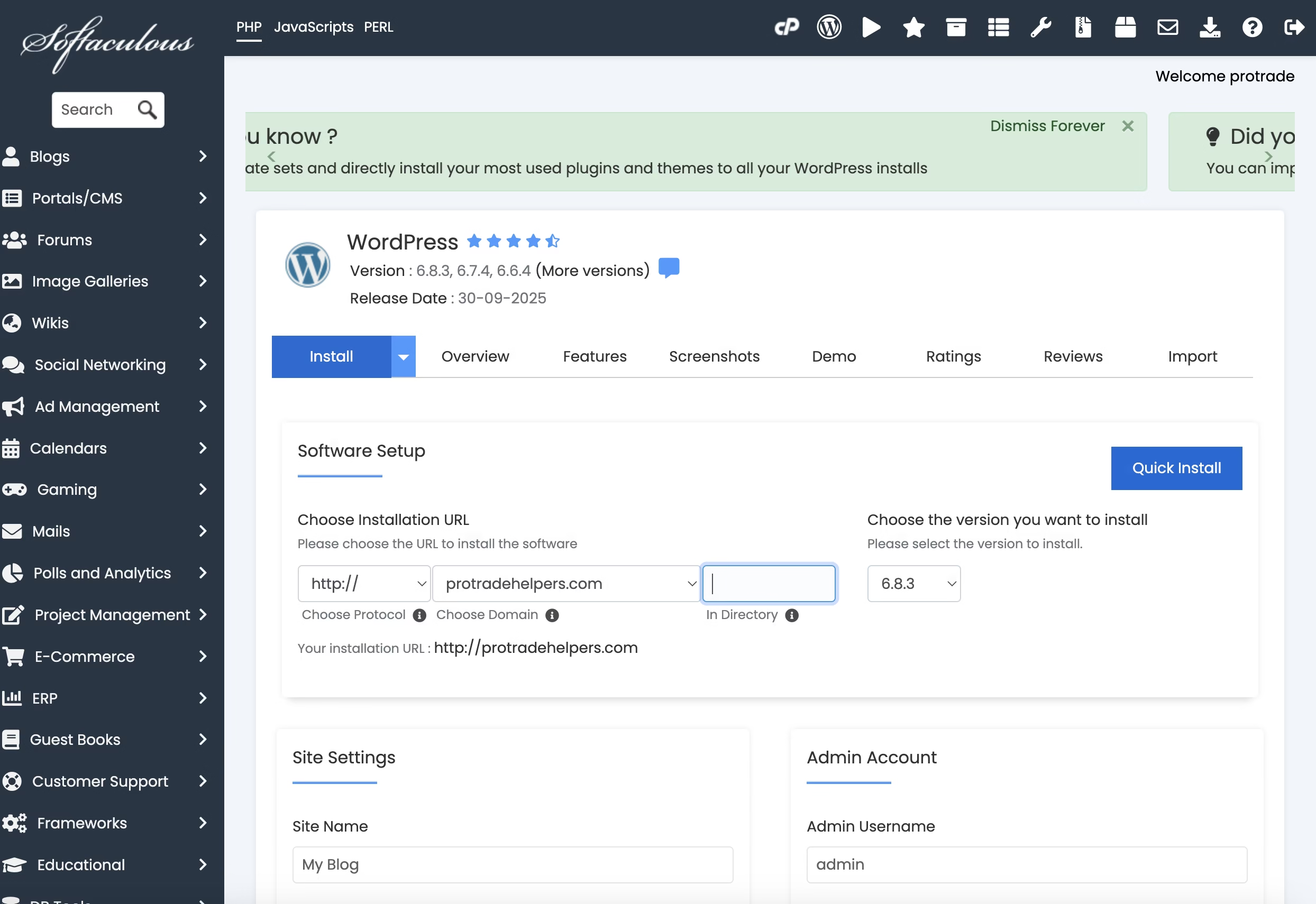
Step 3 – Configure Your Site
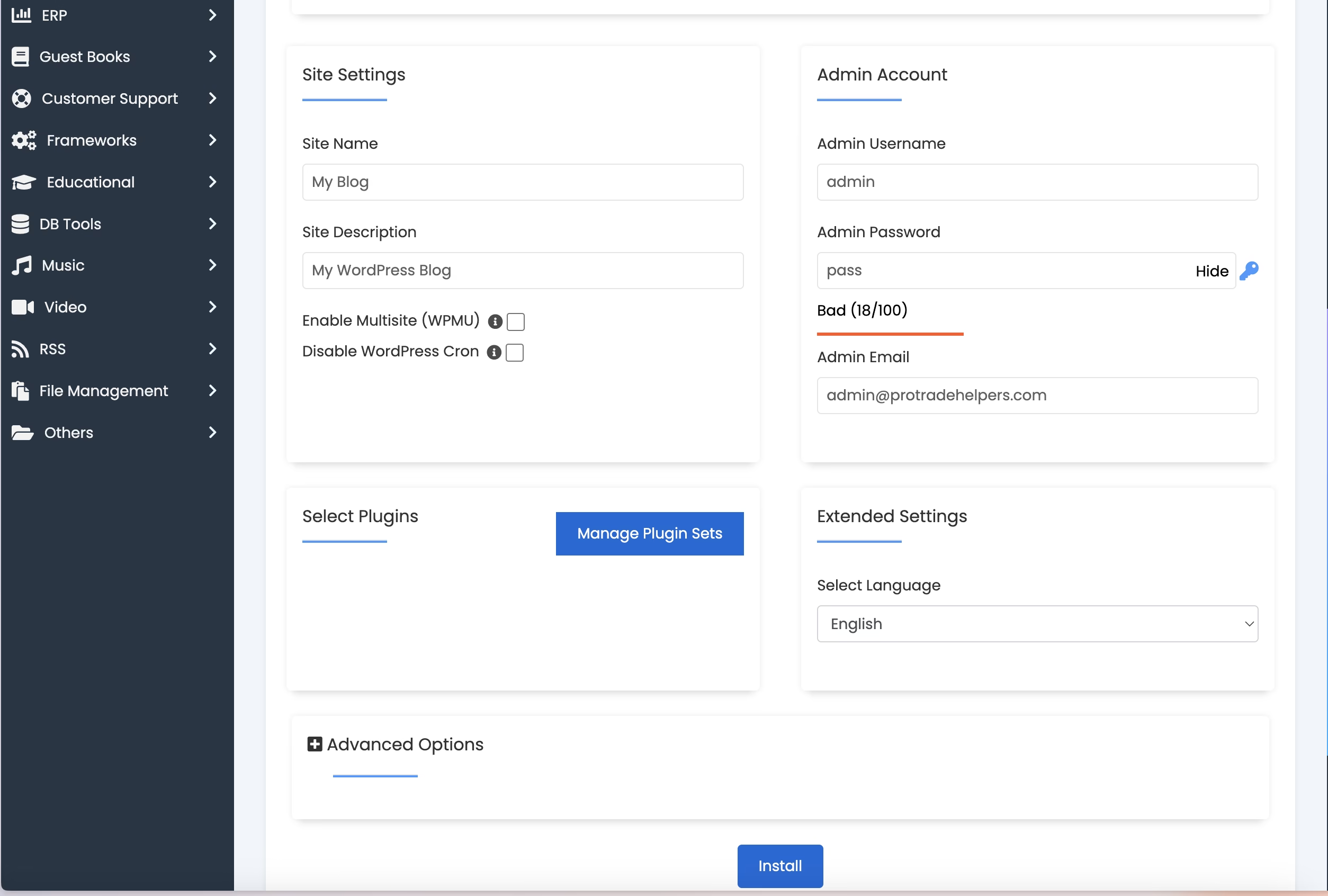
Select your domain, set your site name, username, password, and admin email.
For a main site, leave the “directory” field blank.
Step 4 – Complete Installation
Click Install, wait a few seconds, and you’ll see a confirmation link to your new WordPress dashboard.
Visit yourdomain.com/wp-admin to log in.
How to Access Your WordPress Dashboard from cPanel
You can log in using three methods:
- Through WP Toolkit: Click “Log in” next to your WordPress install — no password required.
- Via the Installer Confirmation Page: Use the provided admin link.
- Manually: Go to
yourdomain.com/wp-admin.
For multiple sites, WP Toolkit helps you manage updates, plugins, and backups all in one panel.
Optimizing WordPress Performance Using cPanel Tools
Set Up Automatic Backups
Go to the Backup Wizard or WP Toolkit, and schedule weekly backups. This prevents data loss.
Improve Speed via PHP & File Manager
Use the Optimize Website feature under the “Software” section in cPanel to compress content and improve site speed.
Secure Your Site
Install an SSL certificate (most hosts provide free Let’s Encrypt SSL).
Enable automatic updates for WordPress core and plugins to avoid vulnerabilities.
Troubleshooting and Common Issues
- Login not working: Check your admin URL or reset the password via the database.
- Database connection error: Confirm your MySQL username/password in
wp-config.php. - Slow site: Remove unused plugins, clear cache, and upgrade your PHP version in cPanel.
cPanel WordPress Hosting vs. Other Options
| Hosting Type | Control | Speed | Maintenance | Ideal For |
|---|---|---|---|---|
| cPanel Hosting | Full | High | Manual | Freelancers, Small Businesses |
| Managed WordPress | Limited | High | Automatic | Beginners |
| VPS / Dedicated | Full | Very High | Advanced | Developers |
FAQ
1. What is cPanel in WordPress?
It’s a web hosting control panel that helps you manage your WordPress site’s files, databases, and settings.
2. How do I install WordPress with cPanel?
Use Softaculous or WP Toolkit inside cPanel, choose your domain, and click “Install.”
3. Can I manage multiple sites with one cPanel?
Yes. Many hosts let you manage several WordPress installations under the same account.
4. Is cPanel free?
Usually, it’s included in your hosting plan — you don’t need to pay extra.
Conclusion
With cPanel WordPress, managing your website becomes easy, flexible, and powerful.
Whether you’re installing WordPress for the first time or optimizing performance, cPanel gives you everything in one place.
Need help setting up or optimizing your WordPress site? Visit mercesweb.com and we’ll handle it for you.
Comments are closed